In this blog, we will demonstrate how to connect the NetSuite MCP (Model Context Protocol) tools directly with OpenAI and Anthropic (Claude) APIs.
This dual-integration approach lets you:
- Call NetSuite tools programmatically through OpenAI or Claude models.
- Enable AI-driven access to real-time NetSuite data.
- Run and test these calls directly in Postman, without building custom middleware.
Prerequisites:
Before you begin, make sure that:
- You have accounts with a credited amount for generating API Keys for:
- OpenAI
- Anthropic
Note on MCP Tools Used in Examples:
All the examples in this blog (for both Claude and OpenAI) are demonstrated using the NetSuite MCP Sample Tools SuiteApp (com.netsuite.mcptools), which includes tools such as runCustomSuiteQL, getSalesOrderWithFilters, and updateCustomer, etc.
Important Update:
As of Oracle’s recent changes, the MCP Sample Tools SuiteApp has been removed from the SuiteApp Marketplace. However, you can still access the source code from the Oracle Samples GitHub repository under the MCP-Sample-Tools directory.
To use the same examples shown in this guide, you’ll need to manually deploy the SuiteApp from the repository. Alternatively, you can use the MCP Standard Tools SuiteApp (com.netsuite.mcpstandardtools), available directly on the SuiteApp Marketplace, which provides a predefined set of 9 standard tools (at the moment) ready for testing and integration.
For more information on these tools, check the Oracle Documentation Available Tools in the MCP Standard Tools SuiteApp. You can also build and deploy your own custom tools or use those created by other developers. If you want to create and deploy custom tools you can refer to our blog Building and Deploying Custom Tools in NetSuite.
Generate an Authentication Token Using a Custom Integration Record
In our earlier blog, A Setup Guide for NetSuite AI Connector with Postman, we provided a detailed walkthrough of how to set up and authenticate the NetSuite AI Connector with Postman using the predefined Claude and OpenAI redirect URIs.
In this section, we’ll show you how to generate an authentication token using your own custom integration record in both Postman Desktop and Web. The steps to generate the access token in Postman remain the same as described in the previous blog. You just have to replace the Redirect URI and Client ID with the ones defined for your custom integration record. All other configurations remain unchanged.
This approach is ideal if you want more control over your OAuth setup or when working outside the pre-configured SuiteApp integrations.
Step 1: Create a Custom Integration Record in NetSuite
To begin, log in to your NetSuite account with an Administrator or Integration Manager role and follow these steps:
- Navigate to Integration Setup:
Setup → Integrations → Manage Integrations → New
- Enter Basic Details
- Name: Enter a descriptive name such as Postman MCP Integration.
- State: Set to Enabled (checked).
- Configure OAuth 2.0 Authentication
In the OAuth 2.0 section under Authentication, make sure to check the following options:
- Authorization Code Grant
- Public Client
- NetSuite AI Connector Service
- Specify Redirect (Callback) URL. The callback URL must match the redirect URI used in Postman.
- Use https://oauth.pstmn.io/v1/browser-callback if you are running the Postman web version (in the browser).
- Use https://oauth.pstmn.io/v1/callback if you are using the Postman desktop app and specifically the “Authorize using browser” option or a similar flow.
You can also define another custom redirect URI or setup local node.js express server and provide the local callback route in Postman Desktop, but ensure it exactly matches the Redirect URI configured in your integration record; otherwise, the authentication will fail.

- Save and Copy the Credentials
After saving, NetSuite will generate:- Consumer Key (Client ID)
The Client ID will be used in Postman to obtain the OAuth access token.
- Consumer Secret (Client Secret)
Consumer secret is not required for Public Clients as they follow PKCE flow because these types of clients e.g., Browser, Mobile etc cannot store secrets safely, so it is a must for them to use it.
Important:
Uncheck the “Authorize using browser” option if you are using Postman Desktop. When this option is checked, the authentication completes successfully in the browser, but Postman will not capture the redirect response as it prevents the token from being retrieved.
By unchecking this option, Postman Desktop handles the redirect internally, allowing token retrieval to complete automatically.
Reference:
For detailed steps on creating integration records for applications using OAuth 2.0, refer to the official Oracle documentation: Create Integration Records for Applications to Use OAuth 2.
Practical Use Case: Controlled AI Access with SuiteApp-Specific MCP URLs
One of the most powerful aspects of this integration is the ability to control which AI agents or users can access specific NetSuite tools and offer fine-grained Role-Based Access Control (RBAC) directly through MCP configuration.
Each SuiteApp in NetSuite exposes its own MCP endpoint.
For example:
- https://<account>.suitetalk.api.netsuite.com/services/mcp/v1/all → All available MCP tools in the instance.
- https://<account>.suitetalk.api.netsuite.com/services/mcp/v1/suiteapp/com.netsuite.mcptools → Only tools from the MCP Sample Tools SuiteApp.
- https://<account>.suitetalk.api.netsuite.com/services/mcp/v1/suiteapp/com.company.customtools → Custom tools developed and deployed internally.
By configuring these SuiteApp-specific URLs, developers can:
- Restrict AI models (Claude, ChatGPT, etc.) to only a subset of tools from a particular SuiteApp.
- Implement user- or role-based access policies, ensuring sensitive operations (like record updates or deletions) are limited to authorized roles.
- Build custom AI-powered apps that interact with NetSuite securely — where each app or user group can access only the tools they need.
Example:
An organization might expose runCustomSuiteQL and getCustomerDetails only to their analytics dashboard AI, while allowing updateCustomer or createSalesOrder tools exclusively for internal automation agents. This architecture not only enhances security but also enables modular, governed AI integrations, aligning with enterprise-grade RBAC and compliance standards.
Connect Claude (Anthropic) with NetSuite MCP Tools
To connect Claude with the NetSuite MCP Tools, you need to:
- Generate an API key from the Anthropic console.
- Set up a request in Postman with appropriate headers, body, and authorization.
- Provide the NetSuite Access Token in the MCP configuration section of your request body.
Step 1: Generating API Key for Claude
Before you can connect NetSuite MCP Tools with Claude via the Anthropic API, you need to generate an API Key from your Anthropic account. This key acts as your secure credential for authenticating all API requests.
1. Sign in to Claude
- Go to https://platform.claude.com and sign in using your registered account.
- If you don’t already have an account, click Sign up to create one.
The previous URL was “https://console.anthropic.com/dashboard”. They have now moved to a unified one, and a toast appears when we log in using this URL.

2. Open API Keys Page
Once logged in, click on Get API Key or navigate to https://platform.claude.com/settings/keys.
This page lists all existing keys associated with your account.

3. Create a New API Key
Click + New Key to generate a new API key.

Enter a descriptive name such as “NetSuite MCP Postman Integration”.

Anthropic will show your new API key only once — make sure to copy and securely store it.
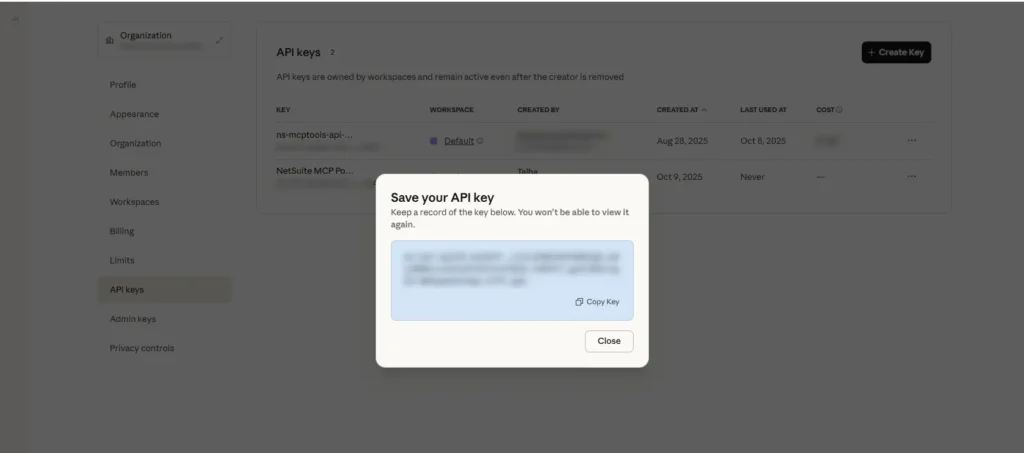
Note: If you lose the key, you’ll need to revoke and create a new one.
To use API keys, your account must have an amount credited. When credits are fully spent, your API requests will not work.

The minimum amount you can credit to your account is $5.

4. Add API Key in Postman
There are two ways we can provide the API Key:
- Select Auth Type as “Anthropic API”

- Set the “x-api-key” under the Headers tab

5. Add Headers in Postman
For the Messages API to work, we need to pass certain headers below:
- anthropic-version: 2023-06-01
- anthropic-beta: mcp-client-2025-04-04
The anthropic-version header defines the API version, while the anthropic-beta header enables access to experimental features including support for MCP (Model Context Protocol) integrations. Without this beta header, requests involving MCP servers will not execute successfully.

References:
Anthropic Beta Headers — for details on the anthropic-beta header and its feature sets.
Anthropic MCP Connector Guide — for setup steps and technical reference on connecting MCP servers.
6. Validate the API Key
Send a simple test request to verify that your key works correctly:
Request
POST https://api.anthropic.com/v1/messages

Body
{
  "model": "claude-sonnet-4-20250514",
  "max_tokens": 50,
  "messages": [
    {
      "role": "user",
      "content": "Say hello from Claude"
    }
  ]
}
A valid response will confirm your setup is working successfully.

Step 2: Sending Request to Claude with NetSuite MCP Tools
Once your API key is ready and validated, you can send a request to call NetSuite MCP Tools.
Example: Fetch Sales Orders for a Customer by Email
URL: https://api.anthropic.com/v1/messages
Body:
{
  "model": "claude-sonnet-4-20250514",
  "max_tokens": 1024,
  // "stream": true,
  "messages": [
    {
      "role": "user",
      "content": [
        {
          "type": "text",
          "text": "Fetch Sales Orders for the customer having email [email protected]",
          "cache_control": {
            "type": "ephemeral",
            "ttl": "1h"
          }
        }
      ]
    }
  ],
  "mcp_servers": [
    {
      "name": "ns-mcp-tools-remote",
      "type": "url",
      "url": "https://tstdrv1234567.suitetalk.api.netsuite.com/services/mcp/v1/all",
      "authorization_token": "<BEARER_TOKEN>",
      "tool_configuration": {
        "allowed_tools": ["getSalesOrderWithFilters", "runCustomSuiteQL"],
        "enabled": true
      }
    }
  ]
}
Description of Body Fields
- model: Specifies the Claude model version used for the request.
- max_tokens: Maximum number of tokens the model can generate in response.
- stream: Optional boolean to enable streaming responses (commonly used in frontend or real-time integrations).
- messages: Represents the conversation context, similar to chat messages. The role (user/system/assistant) defines who’s sending the message, and the content field includes the user’s query with optional caching controls.
- mcp_servers: This section allows Claude to connect with the NetSuite MCP server. It includes:
- name: Identifier for the remote MCP server (you can name it anything logical).
- type: Always url for external API integrations.
- url: The NetSuite MCP endpoint (e.g., https://{{account_id}}.suitetalk.api.netsuite.com/services/mcp/v1/all for all available tools and https://{{account_id}}.suitetalk.api.netsuite.com/services/mcp/v1/suiteapp/<applicationid> for SuiteApps specific Custom Tools).
- authorization_token: The NetSuite Access Token generated in the previous blog.
- tool_configuration: Specifies which tools are allowed and whether they are enabled for this call.

Reference:
For a complete explanation of all available parameters and schema structure, see the official Anthropic Messages API documentation.
Response:
Claude first finds the customer’s internal ID using the email address and then retrieves all sales orders associated with that customer.

Description of Response Fields
- id → Unique identifier of the message for tracking and debugging.
- role → The role of the responder (always assistant for Claude).
- content → Contains structured elements of the response:
- type: text — Natural language output from the model.
- type: mcp_tool_use — Indicates when Claude called a specific MCP tool.
- type: mcp_tool_result — Returns the output of the invoked NetSuite MCP tool.
- tool_use_id → Links a specific tool result to its invocation.
- is_error → Boolean indicating whether the MCP tool call failed or succeeded.
- usage → Provides token usage details for input/output, useful for cost and performance tracking.
This structure allows full traceability — from prompt → tool invocation → final AI response.
Understand Caching in Claude API Requests
Claude’s Messages API introduces a caching mechanism that helps improve performance and reduce token usage for repeated or similar requests. When you define the cache_control parameter in your request body, you instruct Claude on how to handle temporary caching of the current message context or results.
Example Snippet
"cache_control": {
  "type": "ephemeral",
  "ttl": "1h"
}
Field Explanation
- type → Defines the cache type. Setting it to “ephemeral” means the cache is temporary and automatically expires after the specified time-to-live (TTL).
- ttl → Time-to-live duration for the cache. In this example, “1h” means the cached data will be valid for one hour.
How Cache Tokens Work
When a response is cached successfully, the API returns metadata fields in the usage object, such as:
- cache_creation_input_tokens → Indicates how many tokens were used to create the cache entry for this response.
- cache_read_input_tokens → Represents how many tokens were retrieved from an existing cache rather than reprocessed — effectively saving computation cost.
You may also see fields like:
| “cache_creation”: { “ephemeral_5m_input_tokens”: 0, “ephemeral_1h_input_tokens”: 0} |
These specify which cache duration (5 minutes, 1 hour, etc.) was used during the session.
When to Use It
Caching is especially useful when you’re:
- Running repeated queries to the same MCP tools or endpoints.
- Fetching static data (like configuration lists or metadata) that doesn’t change frequently.
- Optimizing API cost and latency for automated workflows.
Connect OpenAI (ChatGPT) with NetSuite MCP Tools
After integrating Claude (Anthropic) with NetSuite MCP Tools, the next step is to enable the same connection through OpenAI’s API. This allows ChatGPT to perform real-time operations inside NetSuite, such as reading and updating customer records via the Responses API.
Step 1: Generate an API Key for OpenAI
Before proceeding, create an API key from your OpenAI account.
- Sign in to the OpenAI Platform
Visit https://platform.openai.com/chat and log in to your account.
If you don’t have one, click Sign Up to create it.
- Access API Keys Page
From your profile menu (top-right corner), select API Keys or navigate directly to https://platform.openai.com/api-keys.

3. Create a New Secret Key
Click create new secret key, give it a descriptive name such as NetSuite MCP Integration, then copy it immediately — it will not be shown again.


4. Assign Permissions (Optional)
By default, newly created keys have full access to the OpenAI API. You can add a restriction to the permissions. Anthropic (Claude) doesn’t have this type of granular API access control at the moment like OpenAI (ChatGPT).

Note:
Make sure that you have an amount credited in your account in order to use the API key. When your credit balance reaches $0, your API requests will stop working.
You can check the available balance by going to: Settings -> Billing

Like Claude, the minimum amount that you can credit to your OpenAI account is $5.

5. Add API Key to Postman
In Postman, under Authorization, set:
- Type → Bearer Token
- Token → your OpenAI API key

Step 2: Sending Request to OpenAI with NetSuite MCP Tools
This example demonstrates how GPT-4.1 can retrieve and update customer information by calling multiple MCP tools — specifically runCustomSuiteQL and updateCustomer.
Request
URL: https://api.openai.com/v1/responses

Body:
{
  "model": "gpt-4.1",
  "input": "Update the phone number to 555-555-5555 for the customer with the email [email protected]",
  "tools": [
    {
      "type": "mcp",
      "server_label": "ns-mcp-tools-remote",
      "server_url": "https://tstdrv1234567.suitetalk.api.netsuite.com/services/mcp/v1/all",
      "require_approval": "never",
      "allowed_tools": ["updateCustomer", "runCustomSuiteQL"],
      "authorization": "<BEARER_TOKEN>"
    }
  ],
  "store": false
  // "stream": true
}
Description of Body Fields
- model → Specifies the GPT model to be used. Here we’re using gpt-4.1, which supports the latest tool-calling capabilities.
- input → A natural language instruction to the model. GPT interprets this command and determines which MCP tools to invoke to complete it.
- tools → This array defines the external MCP tools that the model can access:
- type: Always “mcp” for NetSuite AI Connector.
- server_label: Logical identifier for your NetSuite MCP instance.
- server_url: URL to your NetSuite MCP endpoint (use /v1/all for all tools).
- require_approval: Defines if manual approval is required for tool use — “never” means GPT can call tools automatically.
- allowed_tools: Lists specific NetSuite tools GPT can use (runCustomSuiteQL to query, updateCustomer to modify).
- authorization: Your NetSuite Access Token.
- store → When set to false, the conversation is not stored by OpenAI for future training or retrieval.
- stream → (Optional) If true, the response will be streamed in real time — useful for live UIs or interactive dashboards.
- prompt_cache_key → (Optional) Used by OpenAI to cache responses for similar requests to optimize your cache hit rates. You can view more details in the official OpenAI Caching Documentation.
Reference:
For detailed parameters and supported options, refer to the official OpenAI Responses API documentation.
Step 3: Example Response
There is a significant difference between how OpenAI’s Responses API and Anthropic’s Messages API handle MCP tool invocation. In the Responses API, OpenAI performs an explicit tool discovery step first. It lists all the tools available to the model by calling mcp_list_tools, retrieving each tool’s input/output schema, and then determines which tools to invoke next based on the user’s request and schema compatibility.
In contrast, Anthropic’s Messages API performs this process internally. It doesn’t expose a separate list_tools phase in its response structure. Instead, the model automatically understands and executes the tool calls behind the scenes, exposing only the actual tool usage (mcp_tool_use) and results (mcp_tool_result).
Below is a response returned by OpenAI after successful execution:

Description of Response Fields
- id → Unique identifier assigned by OpenAI for tracking the response.
- created_at → Timestamp (UNIX format) indicating when the request was processed.
- output → The main response body, which includes the sequence of actions GPT performed:
- type: mcp_list_tools → Lists all MCP tools the model can use during this request.
- type: mcp_call → Shows each MCP tool invocation made by the model:
- The first call executes runCustomSuiteQL to locate the customer’s internal ID.
- The second call executes updateCustomer to update the phone number using that ID.
- type: message → The natural language response summarizing the actions taken and results.
- usage → Tracks token consumption for input and output, which helps estimate cost and efficiency.
This flow clearly shows how GPT autonomously identifies which tools to call and in what order.
View Real-Time Streaming Responses
If you enable the “stream”: true parameter in your request body for both OpenAI and Claude, the model will return results using HTTP Streaming powered by Server-Sent Events (SSE). This approach allows developers to observe the response token-by-token, a useful feature when building custom apps or dashboards that display live AI reasoning or NetSuite data updates.

Conclusion
Integration of NetSuite MCP Tools with both OpenAI and Anthropic (Claude) APIs has introduced a new wave of intelligent automation for NetSuite users. This dual-API setup enables AI models to query, analyze, and update live NetSuite data through natural language instructions without needing any custom middleware or manual API orchestration.
With this setup, you can:
- Automate repetitive NetSuite operations through conversational commands.
- Build AI-powered assistants that interact directly with NetSuite data.
- Prototype and test MCP-based workflows easily using Postman before integrating them into production.
This approach represents a significant step toward AI-augmented ERP systems, where NetSuite becomes more than a data management platform — it becomes an intelligent business assistant capable of reasoning, acting, and adapting in real time.
Related Reads:
- A Setup Guide for NetSuite AI Connector with Postman
- A Complete Setup Guide for NetSuite AI Connector
- Building and Deploying Custom Tools in NetSuite
These articles collectively provide the complete foundation (from setup and authentication to advanced tool deployment) to help you integrate AI with NetSuite confidently and efficiently.