Key Takeaways
- Data mapping is the most crucial foundation for Boomi and NetSuite integration projects. Getting it right saves you from a permanent drain on your time.
- NetSuite presents unique data mapping challenges. Its deeply hierarchical object model and reliance on custom fields make mapping more complex.
- Treat data mapping as an ongoing process. Build data mappings with flexibility in mind and treat documentation as a living resource.
As businesses evolve, the number of systems they use eventually increases. What starts as a simple setup, like an accounting tool and a CRM, quickly or slowly multiplies into an expanding ecosystem of ecommerce platforms, inventory management systems, WMS, online marketplaces, payment processors, and more.
Since each system is specialized for getting a particular job done, it has its own unique way of recording data and naming fields. One system calls it “Account ID,” while another calls it “Customer ID.” One uses a flat file structure, while the other nests everything inside a complex hierarchy of parent-child objects.
This fragmentation is the natural cost of best-of-breed technologies. If left unchecked, it creates data silos, reconciliation issues, and a whole lot of manual spreadsheet work, which your team hates doing.
This is where integration platforms like Boomi, paired with NetSuite, become an indispensable tool. In case you’re not a developer or an integration architect, you might be thinking that data mapping is as simple as dragging and dropping two fields on a canvas to form a connection. But that’s not really the case.
In fact, NetSuite, in particular, presents unique data mapping challenges due to its deeply hierarchical object model, extensive reliance on custom fields, and significant variability between customer implementations.
Apart from direct one-to-one mappings, a field may need to be converted, concatenated, split, looked up, conditionally populated, or assigned a default value before it reaches the destination.
Getting your data mapping right from the start saves your team from the permanent drain on their time. In fact, it is the most crucial foundation for integration projects since getting it wrong breaks your integration.
In this blog, we will cover the data mapping best practices when it comes to integrating NetSuite with Boomi. But before that, we need to know a little about two important features of Boomi that are relevant to data mapping:
- Boomi Mapping Tab
- Boomi Suggest
Understanding the Boomi Mapping Tab
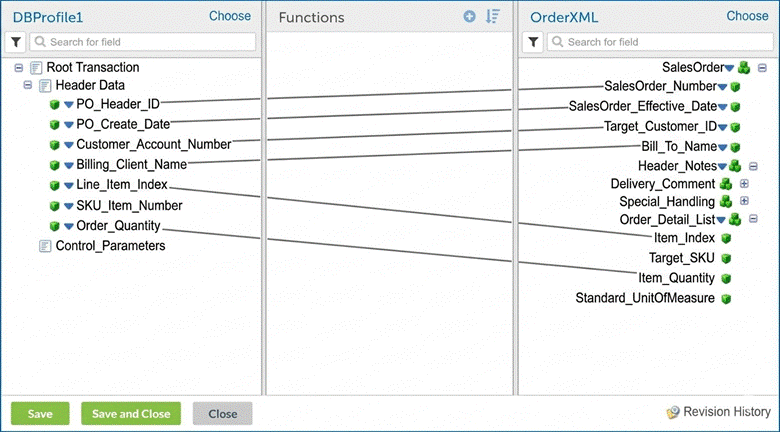
Before diving right into best practices, it’s crucial to understand the primary workspace where all NetSuite Boomi data mapping happens. That workspace is called the Boomi Mapping Tab.
The Mapping Tab is a visual canvas within your Boomi integration process where you define how data flows from source to target.
Getting to Know Boomi Suggest
One of Boomi’s most powerful features is Boomi Suggest, which uses the collective intelligence of thousands of data maps created by the Boomi user community to recommend mappings for you.
Boomi Suggest analyzes millions of anonymized data mappings logged by the community. When you open a map with source and destination profiles selected, you can click the Boomi Suggest button to receive mapping suggestions.
12 Best Practices for NetSuite and Boomi Data Mapping
Based on real-world NetSuite and Boomi integration deployments done by our integration experts, here are the essential best practices and tips for mastering NetSuite Boomi data mapping:
- Review every field mapping carefully
- Establish a golden record strategy before mapping
- Document every mapping thoroughly
- Handle profile reimports correctly
- Use externalId to prevent duplicate records
- Navigate hierarchical objects carefully
- Apply transformations consistently
- Plan for batch size limits
- Manage connection pooling to avoid bottlenecks
- Validate data before sending to NetSuite
- Scope your first release narrowly
- Implement robust error handling
1. Review Every Field Mapping Carefully
A single incorrectly mapped field can corrupt thousands of records. Dates formatted wrong, currency fields mapped to text, or foreign keys misaligned, all of these cause failures that are difficult to trace.
Before saving your mapping, you should:
- Verify source and target data types match
- Confirm that required fields are mapped and not left empty
- Check that optional fields are mapped only when they should be
- Use Preview mode to test mapping logic with sample data before deploying
- Even when using Boomi Suggest, manually review every proposed mapping, especially medium and low-confidence suggestions
2. Establish a Golden Record Strategy Before Mapping
When data flows between multiple systems, conflicts are bound to happen. Without a single source of truth, you’ll face inventory mismatches, duplicate customer records, and reconciliation issues.
We recommend that you use Boomi Data Hub as an intermediary rather than treating NetSuite as the sole authority. Route all data into Data Hub first, validate it against your business rules, and then push it to NetSuite.
3. Document Every Mapping Thoroughly
Boomi profiles get reimported frequently as NetSuite evolves. And it’s risky because when a profile is reimported, mappings can get wiped out entirely. Without documentation, you’ll waste hours reconstructing what you already built and lose all the progress made.
This is why we strongly recommend that you maintain a spreadsheet. Yes, it’s ironic, but still. Even better is that you maintain a documentation repository that captures the following:
- Source field name and path
- Target field name and path
- Transformation logic
- Whether a field is required or not
- Additional notes
It would look something like this:
| Source Field | Target Field | Transformation | Required Field? | Notes |
| entityID | customerNumber | None | Yes | Direct mapping |
| companyName | accountName | Trim | Yes | Remove whitespace |
| emailAddress | Lowercase | No | Validate format | |
| subsidiary | businessUnit | Lookup | Yes | Cross-reference |
| currency | currencyCode | Lookup | Yes | ISO conversion |
You need to update this documentation every time you modify a mapping. Consider adding comments directly in the Mapping Tab using the annotation feature.
4. Handle Profile Reimports Correctly
Reimporting a NetSuite profile is something that cannot be avoided. Because custom field changes, schema updates, or environmental refreshes happen, which force you to reimport it.
So, how should you handle this? Well …
First of all, expand all XML elements manually before mapping. Boomi condenses XML profiles by profile and hides nested fields you’ll need. So, in the Profile Viewer, click the Expand icon to reveal all nested elements.
Also, don’t make the mistake of importing using the preferred form. Always import using NetSuite’s standard form because custom fields added only to the preferred form won’t show up in Boomi.
5. Use externalId to Prevent Duplicate Records
Without a unique identifier, NetSuite cannot distinguish between a new record and an update. This leads to duplicate customers, orders, items, and other records. If your upsert or upsertList operation is missing the proper unique identifier mapping, duplicates will be created.
You should always map the externalId field to a unique identifier from your source system, for instance, the Salesforce ID, Shopify ID, etc. The reason why we ask you to use external IDs is that internal IDs can change between systems.
In the Mapping tab, drag the unique identifier from your source profile directly to the externalId field in the NetSuite destination profile. This tells NetSuite whether to create a record or update it.
6. Navigate Hierarchical Objects Carefully
We already mentioned in the beginning that NetSuite stores data in deeply nested structures. For instance, the nested structure of salesOrder looks something like the following. So, if you only map root-level data fields, you’ll miss out on critical data.
salesOrder

  |- internalID

  |- customer

  |- transactionDate

  |- currency

  |- subsidiary

  |- shippingAddress

  |- items

      |- item

      |- quantity

      |- rate

      |- amount
But what if you can’t find a field at the root level? Well, in that case, expand parent elements in both the source and destination panels to locate nested fields. Use the search feature in the Mapping tab to quickly find specific fields by name.
7. Apply Transformations Consistently
No two systems have the same data model, and failing to transform data types, date formats, or value enumerations causes runtime failures.
Common transformation scenarios include:
- Date Formatting: Convert between regional date formats using the formatDate() function
- Currency Handling: Ensure that decimal precision, scale, rounding, and currency rules are explicitly defined between the source and destination systems
- Boolean Mapping: Convert “Y/N” to “true/false” or “1/0” using if() or case () functions
- String Cleaning: Use trim() to remove whitespace, replace() to handle special characters, enforce length limits
Also, don’t go all-in on transformations hastily, and do not apply them on live data. Instead, apply transformations at the field level within the Mapping Tab’s function library. Test each transformation with sample data using the Preview feature before deploying.
8. Plan for Batch Size Limits
The Boomi NetSuite connector has strict, hard-coded batch limits that directly impact performance and reliability. In fact, if you’ve been through our article on the Boomi and NetSuite integration architecture, we have already discussed batch size limits there.
| Operation Type | Maximum Batch Size |
| Create | 100 records |
| Update | 50 records |
| Upsert | 50 records |
| Delete | 100 records |
So, the question is how to work around the batch size limits. Don’t worry. We’ve got you. Here’s what you need to do:
- Set batch size to 0 in the connector configuration to let Boomi use the connector’s maximum limit automatically
- Design your process to handle chunking. If you’re updating 200 records, for instance, Boomi splits them into four batches of 50
- Monitor batch performance in Boomi’s Process Reporting dashboard and adjust throttling if you hit NetSuite concurrency limits
9. Manage Connection Pooling to Avoid Bottlenecks
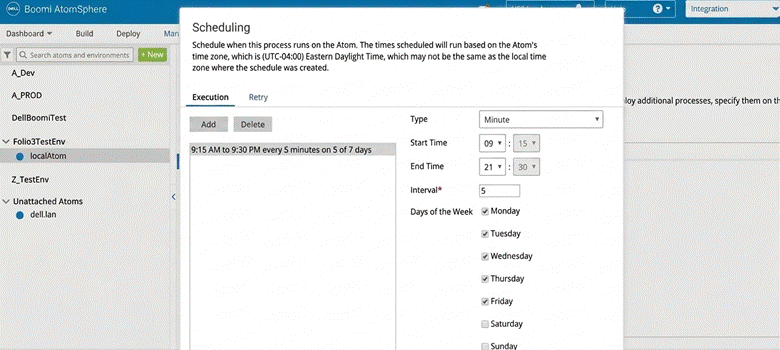
Boomi pools connections to stay within NetSuite’s concurrent session limits. But the bad news is that pooling doesn’t work across different Java Virtual Machines (JVMs).
If you’re running multiple processes on a runtime cluster, space out their schedules rather than running them simultaneously. This prevents connection exhaustion and failed jobs. Use Boomi’s Scheduling feature to avoid overlap.
10. Validate Data Before Sending to NetSuite
The Boomi and NetSuite connector treats different error types differently. Damaged records trigger process-level exceptions that stop all processing, while document errors like invalid IDs may still continue.
It is highly recommended to implement a validation step in your Boomi process before the connector executes:
Check for required fields using conditional mapping or validation shapes. Validate data types and formats with transformation functions. Verify that foreign keys like customer IDs or item IDs exist in NetSuite using lookup functions, and reject or quarantine invalid records rather than sending them. You should use a separate path for failed records.
11. Scope Your First Release Narrowly
Remember us talking about not going all-in on transformations hastily in the Apply Transformations Consistently section? Well, this advice applies here too. Because mapping everything at once leads to complexity, delays, or failures that are hard to debug.
For your initial release, map only the non-negotiable fields. Mind you, there is no standard definition or list of fixed non-negotiable fields, as it varies from business to business and industry to industry.
For instance, for a manufacturing concern, the non-negotiable fields could be Production orders, Bill of materials, Inventory levels, and Core customer and order data.
12. Implement Robust Error Handling
You shouldn’t force an attempt to make every record pass. Your Boomi and NetSuite integration should be able to distinguish between valid, recoverable, and invalid data.
To ensure this, configure error handling to match your business rules. Stop processing for critical failures like authorization issues, log and skip non-critical document errors, set up alerts for recurring failures, and route failed documents to a dead-letter queue for manual review.
The Foundation for NetSuite and Boomi Integration Success Starts with Data Mapping
It goes without saying that Boomi-NetSuite data mapping is the strategic foundation upon which your entire integration ecosystem rests. As we’ve covered throughout this blog, successful mapping requires a careful approach.
The twelve best practices we’ve outlined represent the cumulative wisdom we’ve gained from real-world NetSuite and Boomi integration deployments.
Remember that data mapping is not a one-time thing. As your business evolves, your systems will change, NetSuite will release updates, and your integration requirements will grow. Build your mappings with this flexibility in mind, and treat your documentation as a living resource that evolves alongside your integration.
Frequently Asked Questions
What is NetSuite Boomi data mapping?
NetSuite Boomi data mapping is the process of defining how data moves and is transformed between NetSuite and another application through Boomi. It involves connecting source and target fields and applying transformations when data types, formats, identifiers, or structures are different.
Why is data mapping important for NetSuite and Boomi connectivity?
Data mapping is important for NetSuite and Boomi connectivity because an incorrectly mapped field causes integration failures, incorrect data, duplicate records, or reconciliation errors. Careful mapping helps ensure that data reaches NetSuite in the correct structure and format.
What is Boomi Suggest, and can it be trusted for NetSuite mappings?
Boomi Suggest uses anonymized mapping data from the Boomi user community to recommend potential field mappings. It can speed up the mapping process, but every suggested mapping should still be manually reviewed, particularly low- and medium-confidence suggestions.
What types of transformations are commonly needed in NetSuite Boomi mappings?
Common transformations include date-format conversion, currency and decimal handling, Boolean conversion, string trimming, special-character replacement, and enforcing field-length limits. You should apply these transformations at the field level and test with sample data before deployment.