Learn how to integrate NetSuite with Salesforce using the right integration method, data mapping, and testing process to keep your CRM and ERP working together.
Key Takeaways
- Integrating NetSuite with Salesforce keeps customer, sales, and financial data synchronized across both systems.
- Choosing the right integration method depends on your business requirements, budget, and existing workflows.
- A well-planned data mapping strategy reduces duplicate records and synchronization errors.
- Testing the integration before launch helps identify issues before they affect daily operations.
- Regular monitoring keeps your CRM and ERP connected as your business grows.
Why Connect NetSuite and Salesforce in The First Place?
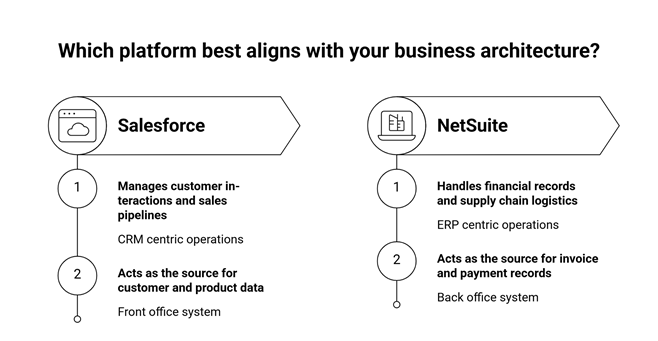
Sales and finance teams often work with the same customers but in different systems. When these systems aren’t connected, teams spend time manually entering the same information in multiple places.
This increases the chances of duplicate records, outdated customer information, and reporting errors. A well-planned NetSuite and Salesforce integration helps both platforms share the same information, making everyday processes faster and more reliable.
The next step is deciding exactly what information should move between the two systems.
Decide what Data Needs to be Shared
Before building the integration, identify the information both systems need to exchange. Not every piece of data needs to be synchronized, so focus on the records your teams use every day.
1. Customer Information: Keep customer records consistent across both platforms so every team works with the latest information.
2. Sales Information: Sync sales data to give both sales and finance teams visibility into the customer journey.
3. Financial Information: Share financial records to improve reporting and reduce manual updates between systems.
4. Product Information: Keep product and inventory details aligned to avoid pricing errors and stock discrepancies.
Tip: Assign one system as the owner of each data type. For example, Salesforce can manage customer opportunities while NetSuite remains the source of truth for financial records.
How To Integrate NetSuite With Salesforce?
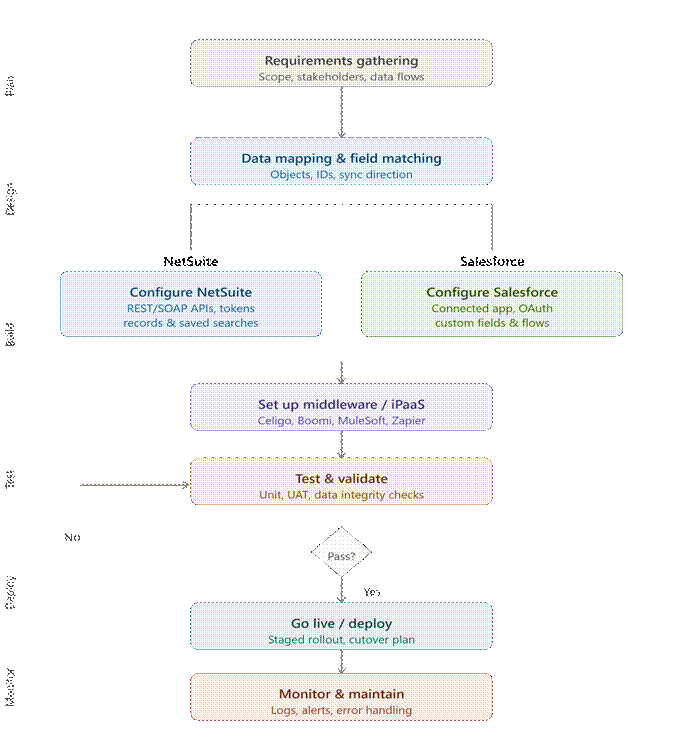
A successful integration is built one step at a time. Following a structured approach helps reduce errors and keeps both systems aligned.
Step 1: Define Your Integration Goals
Start by identifying the business problems you want to solve. Your goal may be reducing manual data entry, improving reporting, automating order creation, or giving sales teams better visibility into customer information.
Having clear objectives makes it easier to choose the right integration method and measure success later.
Step 2: Identify the Data that Needs to Sync
Review which records should move between Salesforce and NetSuite.
Ask questions such as:
- Should new customers sync automatically?
- Should invoices appear in Salesforce?
- Should inventory availability be updated in real time?
- Which system creates sales orders?
Answering these questions early prevents unnecessary synchronization later.
Step 3: Choose the Right Integration Method
Different businesses have different integration requirements. The best method depends on how much customization and automation you need.
| Integration Method | Best For |
| NetSuite Connector | Standard business integrations |
| iPaaS Platform | Businesses connecting multiple applications |
| REST APIs | Custom workflows and advanced automation |
| Middleware | Large enterprise environments with complex integrations |
If you’re integrating only Salesforce and NetSuite, a standard connector may be enough. Businesses with multiple applications often benefit from an iPaaS platform or custom API integration.
Step 4: Map Your Data Fields
Before synchronizing data, make sure each Salesforce field has a corresponding NetSuite field.
For example:
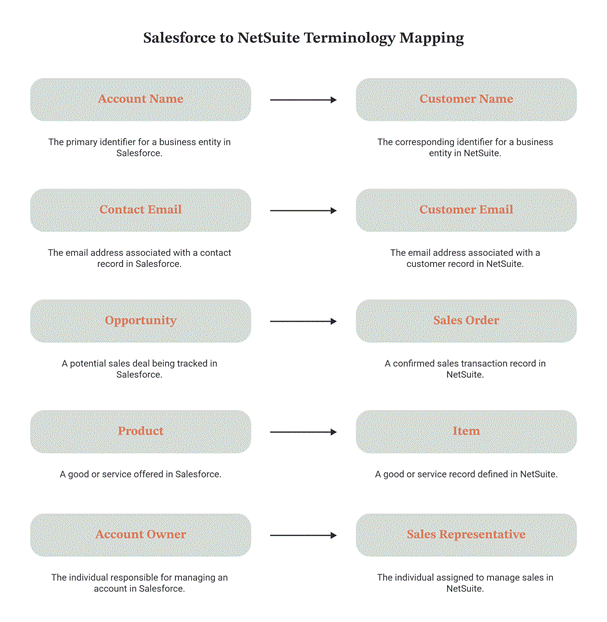
Clear field mapping reduces duplicate records and helps maintain consistent reporting across both platforms.
Step 5: Configure Automation Rules
Once your data is mapped, define when information should move between systems.
Examples include:
- Automatically creating customers in NetSuite
- Syncing new sales orders
- Updating invoice status in Salesforce
- Refreshing inventory availability
- Synchronizing product pricing
Automating routine updates reduces manual work while keeping both systems aligned.
Step 6: Test Before Going Live
Never connect your production systems without testing first.
Verify:
- Customer synchronization
- Product synchronization
- Sales order creation
- Invoice updates
- Inventory synchronization
- Error handling
- User permissions
Testing a small set of records first makes troubleshooting much easier than correcting hundreds of records after launch.
According to Salesforce’s Well-Architected Framework, integration solutions should include monitoring, error handling, and testing to maintain reliable data synchronization across connected systems.
Step 7: Monitor and Improve the Integration
Going live isn’t the end of the project.
Regularly monitor:
- Failed synchronizations
- Duplicate records
- API errors
- Integration performance
- User feedback
Routine monitoring helps ensure your NetSuite integration with Salesforce continues supporting your business as processes evolve.
Common Integration Problems and How to Avoid Them
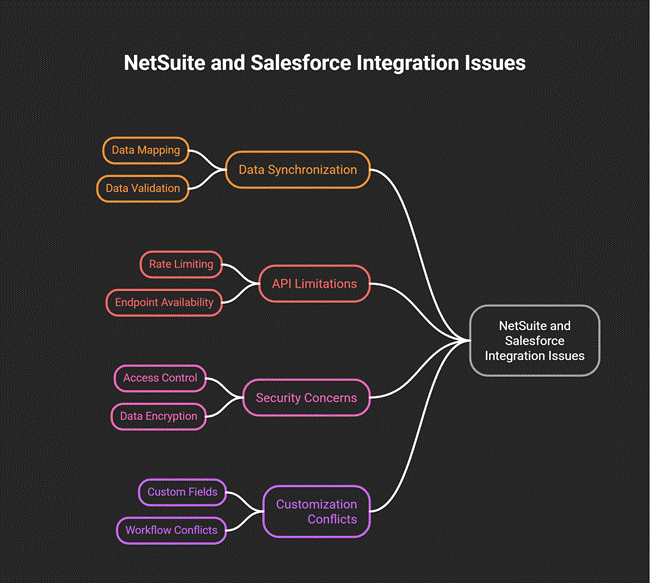
Even with the right integration method, small Integration mistakes can lead to inaccurate reports, duplicate records, or broken workflows. Most of these issues can be avoided with proper planning and regular monitoring.
1. Duplicate Customer Records
- Assign one system to create customer records.
- Let the other system sync updates only.
2. Incorrect Field Mapping
- Match fields accurately between both systems.
- Test mappings before going live.
3. Synchronizing Too Much Data
- Sync only business-critical data.
- Avoid transferring outdated or unnecessary records.
4. Ignoring Error Notifications
- Enable alerts for failed synchronizations.
- Monitor issues and resolve them promptly.
Tip: Maintain an integration log that records failed synchronizations, API errors, and data validation issues. It makes troubleshooting much faster when problems arise.
Which NetSuite Salesforce Integration Method Fits Your Business?
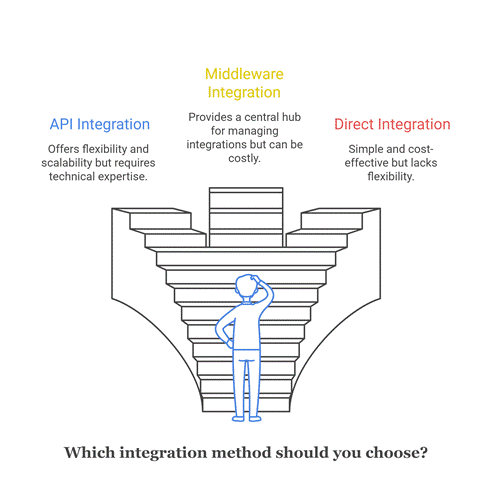
Not every business needs the same integration approach. The best option depends on your workflows, the number of connected systems, and how much customization you require.
| If Your Business Needs… | Recommended Method |
| A quick, standard integration | NetSuite Connector |
| Multiple cloud applications | iPaaS Platform |
| Custom business logic | REST APIs |
| Enterprise-scale integrations | Middleware |
Choose a solution that can grow with your business. Rebuilding an integration every time your processes change can become more expensive than selecting a scalable approach from the start.
A Go-Live Checklist You Shouldn’t Skip
Before activating the integration, make sure you’ve completed these final checks:
- Data fields have been mapped and reviewed.
- Duplicate records have been removed.
- Automation rules have been tested.
- User permissions are configured correctly.
- API connections are working as expected.
- Sample customer, product, and order records have synchronized successfully.
- Error notifications are enabled.
- A backup of both systems has been created.
A final review takes only a little time but can save hours of troubleshooting after launch.
Why Folio3?
Connecting Salesforce and NetSuite requires more than simply exchanging data. Folio3 helps businesses design, implement, and optimize secure integrations that keep customer, sales, and financial information synchronized while supporting future business growth.
Final Thoughts
A successful NetSuite and Salesforce integration is about creating one reliable flow of data across your business, not just connecting two systems. In my opinion, the biggest mistake is rushing the process without proper planning. A little extra time spent on mapping, testing, and monitoring can save weeks of troubleshooting later.
Frequently Asked Questions
What data can be synchronized between NetSuite and Salesforce?
Most businesses synchronize customer records, contacts, opportunities, sales orders, invoices, products, pricing, and inventory. The exact data depends on your integration requirements.
How long does a NetSuite and Salesforce integration take?
The timeline depends on the complexity of your systems, the amount of data being synchronized, and the level of customization required. Simple integrations may take a few weeks, while enterprise projects can take several months.
Do I need technical expertise to integrate NetSuite with Salesforce?
Basic integrations may require minimal technical effort if you’re using pre-built connectors. However, businesses with custom workflows, multiple integrations, or advanced automation often benefit from experienced implementation specialists.
Do I need to upgrade my current NetSuite license before starting an implementation?
Not always. During discovery, we review your current license and let you know upfront if any upgrades are needed before the implementation begins.
Can Folio3 implement NetSuite while my business keeps running day to day?
Yes. We implement NetSuite in a sandbox environment while your business continues running, with the final switch happening only on go-live day.