The advent of powerful, open-source large language models (LLMs), such as Alibaba Cloud’s Qwen, is transforming Artificial Intelligence within enterprise resource planning (ERP) systems like NetSuite. Qwen provides a unique opportunity for developers to build highly customized, robust AI-powered automations and workflows directly within the NetSuite environment.
The Strategic Edge of Open-Source LLMs
In contrast to proprietary alternatives like OpenAI’s ChatGPT, Google’s Gemini, or Anthropic’s Claude, models such as Qwen offer the potential for completely unrestricted commercial use. This is a critical advantage for businesses, enabling them to integrate advanced natural language processing into essential business operations without relying on external vendors or facing uncertain dependencies.
Commercial Feasibility and Licensing Compliance
While the open-source nature of Qwen is highly advantageous, organizations must meticulously review and comply with the specific license terms of the chosen model version before commercial deployment. Assuming a permissive license is in place, this approach facilitates the aggressive and sustainable scaling of AI solutions. Deploying the models through self-hosted or privately managed infrastructure eliminates the unpredictable, continuous per-token costs typical of API-based services and bypasses the expensive enterprise licenses often necessary for high-volume use of proprietary LLM platforms.
Important Note:
MCP connection in Qwen is only available in Desktop apps.
The blog contains the steps to set up Qwen with the NetSuite MCP Connector.
Prerequisites
The prerequisites of setting it up are:
- Install the MCP connector suiteapp, refer to the steps in A Complete Setup Guide for NetSuite AI Connector.
- Set up Postman integration with NetSuite MCP Connector. The steps are mentioned in the A Setup Guide for NetSuite AI Connector with Postman: API Integration Tutorial.
- Install Node.js on our working machine
Steps to setup MCP
Step 1:
Firstly, install Qwen from https://qwen.ai/home and log in. It is available for Mac and Windows; download according to the operating system.
Step 2:
Next, adding MCP can be done by following the steps:
The Qwen chat window will show the MCP option as below.

Step 3:
Click the MCP option, which will ask to go to the MCP settings.

Step 4:
Next, click MCP settings and then Add MCP.

Step 5:
Now, there are two options for adding MCP: either by Quick Add or by using JSON.

Let’s now try using Quick Add:
Step 5.1
Let’s add using StreamableHTTP by providing the server URL. The URL that will fetch MCP tools from the NetSuite account.
Add the following values:
- Name: NS MCP Tools
- Description: Add any description which is non mandatory and I have left it empty
- Type: SteamableHTTP
- URL: https://<ACCOUNT_ID>.suitetalk.api.netsuite.com/services/mcp/v1/suiteapp/com.netsuite.mcpstandardtools
Note: Use /v1/all to fetch all tools and v1/suiteapp/pubid for specific SuiteApp tools.
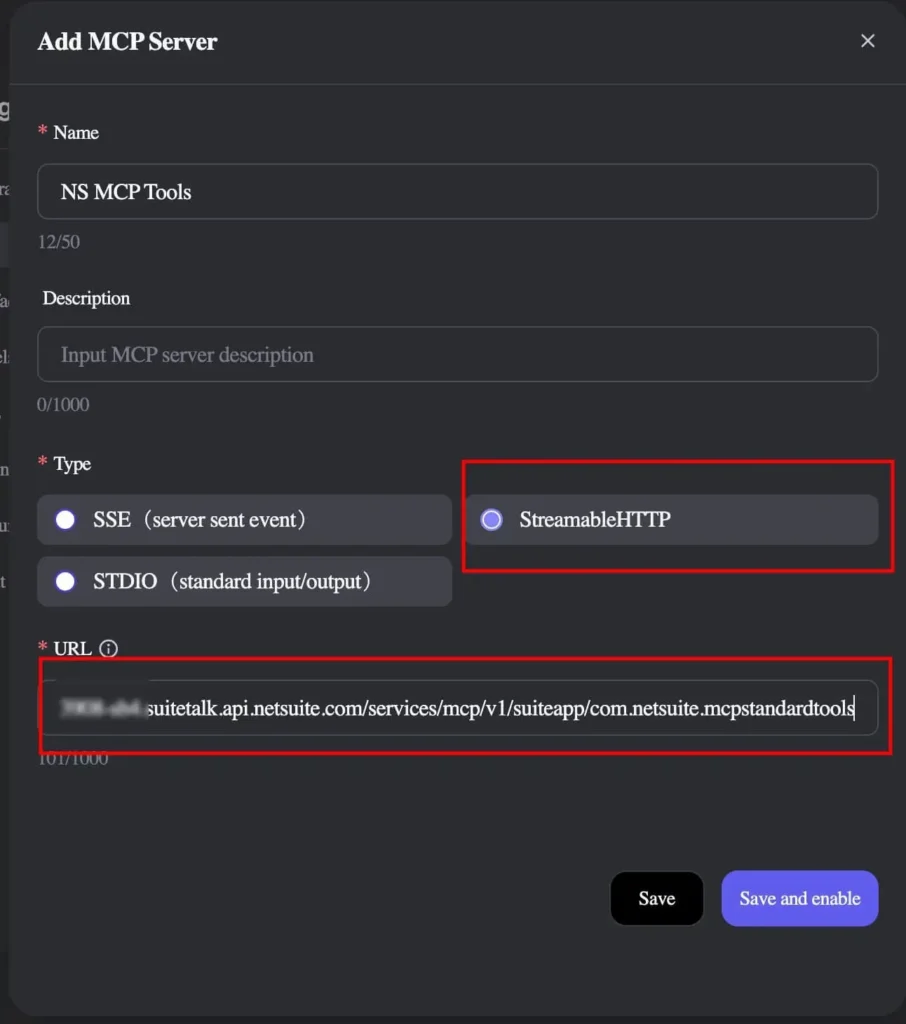
After saving, the MCP will set up, and Qwen will try to connect. It is providing a 401 error because no token was provided for authentication.

Step 5.2:
Let’s now try using SSE and add the same details as mentioned above. It is giving 401 authentication error.

Step 6:
Lastly, let’s add using JSON. There are examples available as well to add using JSON.

The authentication token will be the one used in Postman.
Use the following JSON format:
{
    "mcpServers": {
      "NS MCP Tools": {
        "command": "npx",
        "args": [
          "mcp-remote",
          " https://<ADD ACCOUNT ID>.suitetalk.api.netsuite.com/services/mcp/v1/suiteapp/com.netsuite.mcpstandardtools",
          "--header",
          "Authorization: Bearer <ADD AUTHENTICATION TOKEN>"
        ]
      }
    }
  }
Change the server name accordingly. I have used NS MCP Tools. After adding the JSON, the Save and Enable button will be enabled.
Additionally, note that while trying to edit the config it has a 1000 characters limit in Parameters and Environment Variables box (text area), which means it trims data exceeding that limit. So the only option we are left with is to delete and create a new one instead because access tokens (JWT Base64) are quite big. So each time when the config needs to be edited, a new MCP connection would have to be created.

Another way to add JSON configuration is using environment variables as below:
{
    "mcpServers": {
      "NS MCP Tools": {
        "command": "npx",
        "args": [
          "mcp-remote",
          " https://<ADD ACCOUNT ID>.suitetalk.api.netsuite.com/services/mcp/v1/suiteapp/com.netsuite.mcpstandardtools ",
          "--header",
          "Authorization: Bearer ACCESS_TOKEN"
        ],
"env": {
          "ACCESS_TOKEN":
          "<ADD AUTHENTICATION TOKEN>"
        }
      }
    }
  }


If the connection is successful, the icon will be green and is ready for analysis. If there is any error, check if the command is correct in CMD first.
If there is any error in the MCP connection, check the command from the CLI. Use the following command:
npx mcp-remote https://<ADD ACCOUNT ID>.suitetalk.api.netsuite.com/services/mcp/v1/suiteapp/com.netsuite.mcpstandardtools --method POST --header "Authorization: Bearer <ADD AUTH TOKEN>" --header "Content-Type: application/json" --verboseIf the response is like this, then the connection is correct, but there is some error at Qwen.

If the response is not the same, then there might be an issue that can be diagnosed accordingly.
Possible scenarios can be that either the Node.js version is not updated, so check that the Node.js version which should be 20 or higher. Or the user might not be using the latest version of mcp-remote. Use the mcp-remote@latest while installing, @latest represents the latest version. If the mcp-protocol-version is not the same as the server and client, then the mcp session initiation request handshake fails, and the connection is closed. In Postman, the protocol version mismatch works because the client, i.e., Postman, can upgrade itself, meaning it can use the latest version provided by the server. But some clients, WebStorm AI Assistant and Junie, are strict and close the connection on a mismatch. So this could likely be the issue with Qwen as well.
After the successful MCP connection, it can be used for different queries through chat.
It will be shown like this:

Now you can review the available MCP tools as shown below:

Best Practice:
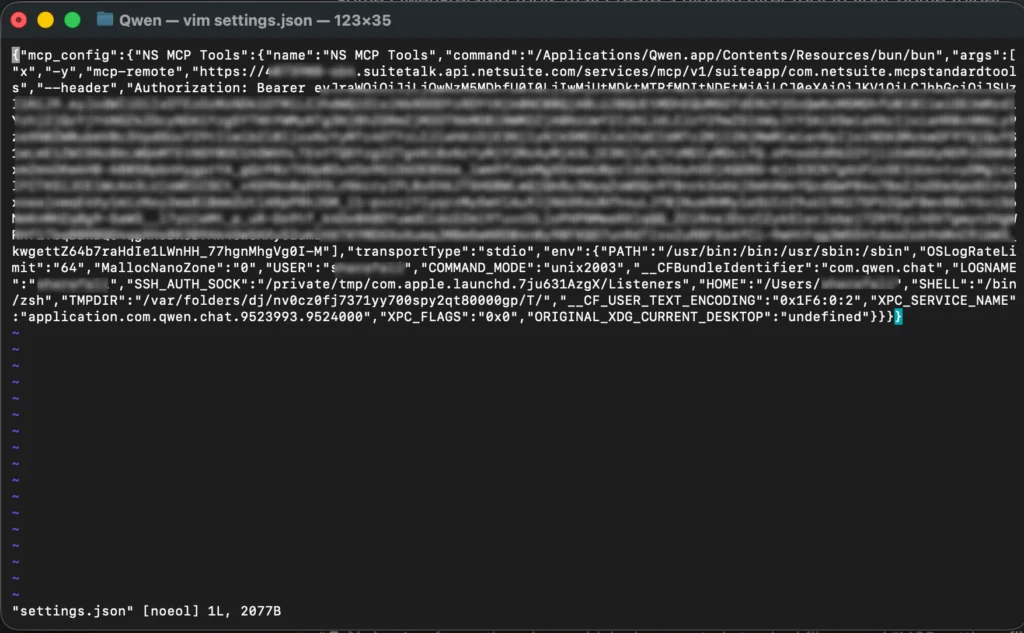
Since this is an Electron-based application, it is recommended to configure all settings through the in-app UI; editing config files directly on Windows, macOS, or Linux may not take effect or could be overwritten on startup. The settings.json can be found in Windows at: C:\Users\<UserName>\AppData\Roaming\Qwen
And in Mac at:
Users/<UserName>/Library/Application/Support/Qwen
The settings.json file looks like this:
Examples
Now let’s explore a few queries using the MCP connection:
Read Operation
Below are examples of read operations


Write Operation
Below is an example of a write operation:

Conclusion
Qwen provides the option to add a custom MCP. The MCP can be used to connect it with a NetSuite account. After the connection, it helps to perform any operation just by text-based queries. Any read or write queries can be performed. But delete operations are not supported in the MCP Standard Tools SuiteApp and for that you need to build and deploy custom tools in your NS Instance. A Development Guide to Build Custom Tools for NetSuite AI Connector: A Development Guide to Build Custom Tools for NetSuite AI Connector.
Related Reads:
There are other related AI custom integrations blogs which provide step by step guides for setting them up. These can be reviewed as well:
- A Complete Setup Guide for NetSuite AI Connector
- A Development Guide to Build Custom Tools for NetSuite AI Connector
- A Setup Guide for NetSuite AI Connector with Postman: API Integration Tutorial
- Dual API Integration: Using NetSuite MCP Tools with OpenAI and Anthropic
- Connecting MCP with ChatGPT: A Complete Guide
- IDE Integration Guide for NetSuite MCP Tools in Cursor & VS Code
- NetSuite MCP Challenge: Implementation Case Study & Results
- Getting Started with NetSuite SuiteTalk REST API in Postman