What Prompt Studio Is
Prompt Studio is a NetSuite screen for writing and storing AI prompts outside of code. A prompt is the instruction sent to the model. Prompt Studio saves the prompt as a record with its own Script ID, like custprompt_f3_ai_generated_email, instead of storing the text as a string inside a SuiteScript file.
SuiteCloud Developer Assistant (SDA) helps write code at design time. N/llm calls the model from code at run time. Prompt Studio stores the prompt text. Prompt Studio does not run anything on its own. Prompt Studio stores and versions the wording.
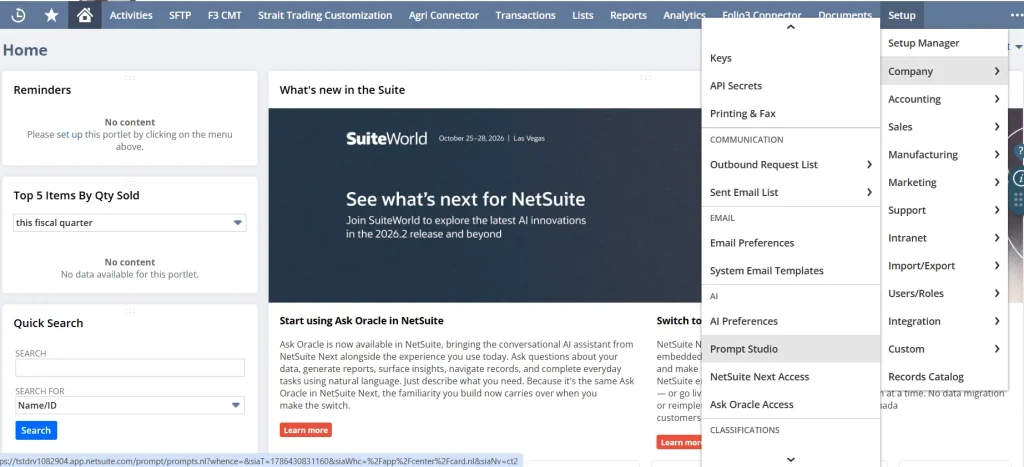
Prompt Studio lives at Setup > Company > AI > Prompt Studio.
The Three Tabs
- Text Enhance Prompts: The instructions behind the field-level “Text Enhance” AI assistant. Scoped to a specific Record, Field, Action, Language, and Variant.
- Generic Prompts: Prompts called from SuiteScript via llm.evaluatePrompt({ id, variables }). Not tied to any field. Both prompts in this document use this type.
- Text Enhance Actions: The clickable options in a field’s Text Enhance menu. One action name backs several context-specific prompts.
Can Do / Can’t Do
| Can do | Cannot do |
|---|---|
| ✓ Store prompts as managed objects with a Script ID | ✗ Fetch or query records. The LLM only sees values you pass in |
| ✓ Use variables (Form / Sublist / User / Company / Special) | ✗ Send emails or create records. Evaluating a prompt only returns text |
| ✓ Use FreeMarker templating: ${var}, <#if>, <#list> | ✗ Take any action or create records on its own |
| ✓ Test prompts live in Preview before writing any code | ✗ Work without the Generative AI feature and permission enabled |
| ✓ Bundle model settings with the prompt | ✗ Guarantee accuracy. You still need to validate output |
| ✓ Export as SDF objects and deploy across accounts | ✗ Bind directly to a saved search. No such variable type exists |
| ✓ Get edited without redeploying the calling SuiteScript |
Fetching and filtering data is your code’s job. Summarizing and rewriting is the model’s job. The LLM never fetches its own data. The LLM only sees what your code hands it.
The Two Prompts We’re Using
Every Generic Prompt record has two text fields that matter: Preamble and Template. Plus model settings. The Preamble works as a system prompt. The Preamble sets the model’s role before anything else. Here is what is typed into each field, from the two prompts documented below.
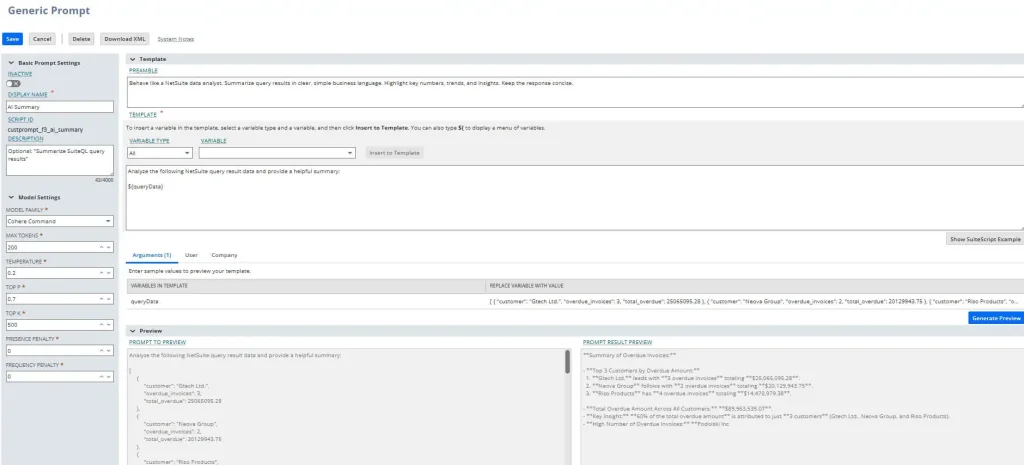
custprompt_f3_ai_summary (“AI Summary”)
Preamble (System Prompt)
Behave like a NetSuite data analyst. Summarize query results in clear, simple business language. Highlight key numbers, trends, and insights. Keep the response concise.
Template
Analyze the following NetSuite query result data and provide a helpful summary:
${queryData}Model settings: Cohere Command, Max Tokens 200, Temperature 0.2, Top P 0.7, Top K 500
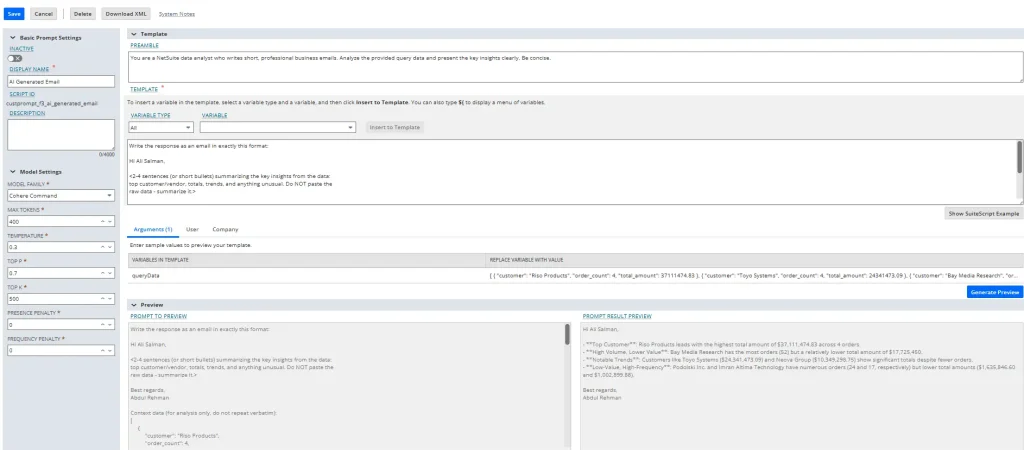
custprompt_f3_ai_generated_email (“AI Generated Email”)
Preamble (System Prompt)
You are a NetSuite data analyst who writes short, professional business emails. Analyze the provided query data and present the key insights clearly. Be concise.
Template
Write the response as an email in exactly this format:
Hi Ali Salman,

<2-4 sentences (or short bullets) summarizing the key insights from the
 data: top customer/vendor, totals, trends, and anything unusual.
 Do NOT paste the raw data - summarize it.>

Best regards,
Abdul Rehman

Context data (for analysis only, do not repeat verbatim):
${queryData}
Model settings: Cohere Command, Max Tokens 400, Temperature 0.3, Top P 0.7, Top K 500
What Preamble and Template Do
Preamble sets the role. Preamble never changes based on the data. Preamble stays the same instruction every time the prompt runs.
Template holds ${queryData}. Template holds the one placeholder in both prompts. When code calls evaluatePrompt() with variables: { queryData: ‘…’ }, that string replaces ${queryData} wherever the placeholder appears.
Both prompts take the same input. Same ${queryData}, same model. The Template text decides the shape of the output: plain summary or formatted email. Change the Template and get a different answer. No code changes needed.
Which Model, and Why
Both prompts above use Cohere Command in their Model Settings. Cohere Command is not the only option. Here is what is available and why Cohere Command fits this use case.
| Model family | Actual model | RAG support | Preamble support |
|---|---|---|---|
| Cohere Command | cohere.command-a-03-2025 | Yes | Yes |
| GPT-OSS | openai.gpt-oss-120b | No | Yes |
N/llm supports these two model families today. A few enum names work as _LATEST aliases pointing at the same model, not separate options. The choice matters less for these two prompts specifically: neither one uses RAG, and neither needs anything GPT-OSS lacks. Cohere Command works as the safer default here. The tool-calling flow elsewhere in this account already uses Cohere Command, and Cohere Command remains the only one of the two that supports RAG if a future prompt needs to cite source documents.
Reference: Oracle NetSuite: llm.ModelFamily
Tuning the Output
Temperature
Controls randomness in word choice. A low temperature keeps answers predictable and close to the safest word choice each time. A high temperature lets the model pick less likely words, producing more varied output. custprompt_f3_ai_generated_email sets Temperature to 0.3, tuned for consistent, factual emails instead of creative writing.
Top P
Sets a probability cutoff. The model only considers the smallest group of words whose combined probability reaches this value. A Top P of 0.7 means the model picks from words that together cover 70 percent of the likely options, and ignores the long tail of unlikely words. Cohere’s own default sits at 0.75.
Top K
Limits the number of word choices the model considers at each step. A Top K of 500 means the model picks from the 500 most likely next words, no matter how the probabilities spread. When both Top P and Top K get set, Top K narrows the list first, then Top P narrows it further.
Reference: Cohere, Advanced Generation Hyperparameters
Calling evaluatePrompt()
Here is the real sequence, in the order the code runs.
Step 1: code fetches the rows and formats them into a string. This step has nothing to do with AI:
const rows = query.runSuiteQL({
  query: `SELECT BUILTIN.DF(t.entity) AS customer,
                 COUNT(*) AS order_count,
                 SUM(ABS(t.foreigntotal)) AS total_amount
          FROM transaction t WHERE t.type = 'SalesOrd'
          GROUP BY BUILTIN.DF(t.entity)
          ORDER BY total_amount DESC FETCH FIRST 15 ROWS ONLY`
}).asMappedResults();

const queryData = rows
  .map((r) => `${r.customer} | ${r.order_count} | ${r.total_amount}`)
  .join('\n');
Step 2: that string goes to the prompt, by ID. This line calls the model:
const response = llm.evaluatePrompt({
  id: 'custprompt_f3_ai_generated_email',
  variables: { queryData: queryData } // fills the ${queryData} placeholder in the Template
});

const aiResponse = response.text;
const { usage } = response;          // promptTokens, completionTokens, totalTokens
evaluatePrompt() never touches N/query. evaluatePrompt() only receives text already fetched and formatted in Step 1. Fetch is code’s job. Summarize is the model’s job.
Reference: Oracle NetSuite: llm.evaluatePrompt(options)
Running It on Real Data
This query ran directly through the N/query module. The result went straight into custprompt_f3_ai_generated_email using the code shown above.
The query returned 15 rows, 3 columns. Here is the top of the result:
| Customer | Order count | Total amount |
|---|---|---|
| Riso Products | 4 | 37,111,474.83 |
| Toyo Systems | 4 | 24,341,473.09 |
| Bay Media Research | 52 | 17,725,450 |
| Shoaib Noman | 4 | 14,071,000 |
| Neova Group | 1 | 10,349,298.75 |
| HTI Corporation | 2 | 8,538,096.49 |
The AI Analysis output, generated from that data:
Hi Ali Salman,
Top Customer: Riso Products leads with a total order amount of $37,111,474.83 across 4 orders.
High-Value Orders: Neova Group and HTI Corporation stand out with significant totals ($10,349,298.75 and $8,538,096.49), despite fewer orders.
Frequent Buyers: Bay Media Research has the highest order count (52) but a relatively lower total amount ($17,725,450), showing smaller, frequent purchases.
Notable Trends: Customers like Podolski Inc. and Imran Altima Technology show consistent activity with 24 and 17 orders, but lower total amounts.
Best regards,
Abdul Rehman
The phrases “frequent buyer” and “notable trend” do not exist in the raw table. The model built that framing from the Preamble’s instructions, applied to data the code handed it.
Tokens and Free Usage
| Metric | Value |
|---|---|
| Prompt tokens | 539 |
| Completion tokens | 188 |
| Max tokens (configured in Prompt Studio for this prompt) | 400 |
Max Tokens caps the model’s output tokens, not the whole conversation. Set the value too low and the response gets cut off mid-sentence before finishing: not an error, a silently truncated answer. custprompt_f3_ai_generated_email sets Max Tokens to 400 in Prompt Studio, well above the 188 completion tokens this run used.
Finding Your Own Free Usage
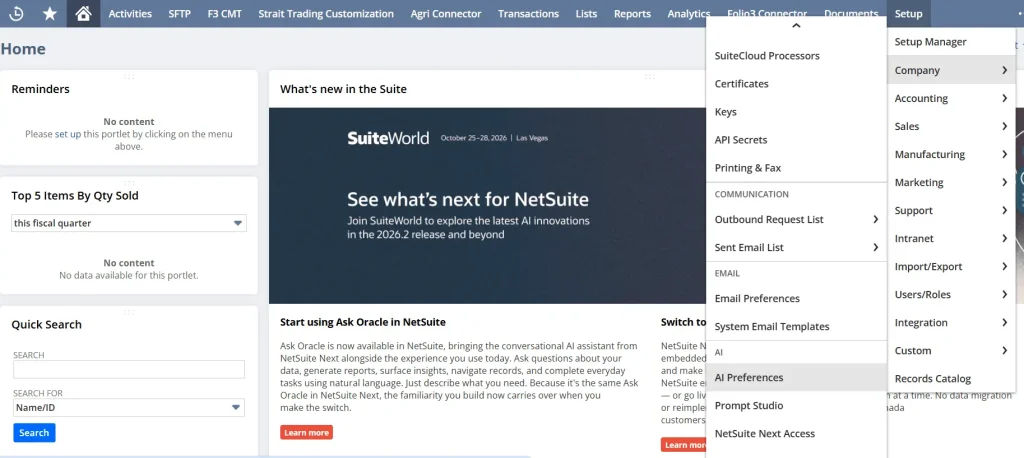
- Go to Setup > Company > AI > AI Preferences
2. Click the SuiteScript subtab
3. The usage table shows Month, Usage Limit, Used Quantity, and Type. evaluatePrompt() falls under Generate.
In code, check the balance before calling it:
const remaining = llm.getRemainingFreeUsage();On this account, the SuiteScript tab showed a Usage Limit of 20,000 per month, with 19,939 free requests left after this call. Every code-triggered call, evaluatePrompt() or generateText(), draws from this same pool. This limit stays account-specific. Oracle does not publish this number as universal, so check your own account’s AI Preferences page instead of assuming this figure applies elsewhere.
Reference: Oracle NetSuite: SuiteScript 2.x Generative AI APIs (free usage pool, region availability)
Prompt Studio Tracks Its Own Usage Separately
AI Preferences has a second tab, named Prompt Studio, next to SuiteScript. Two tabs, two separate counters:
- Prompt Studio tab: Counts actions taken directly inside the Prompt Studio UI for a specific prompt. Every time someone opens a prompt record and clicks Generate Preview to test the wording, that counts as one use. No code involved.
- SuiteScript tab: Counts every evaluatePrompt() or generateText() call triggered by code, across every script in the account that called the LLM that month, not one prompt alone.
Both tabs share the same 20,000-per-month structure, but the two pools stay entirely separate. Nothing gets subtracted or added between them. Each tab counts a different kind of activity.
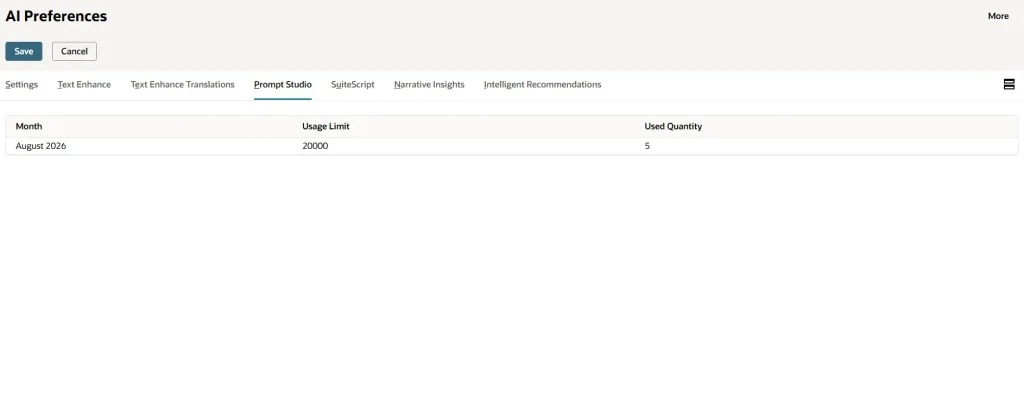
The Prompt Studio tab showed Usage Limit 20,000 and Used Quantity 5. The SuiteScript tab, checked the same day, showed 1,521: the running total of every code-triggered call that month across all testing and development, not the one run documented above. Checked again later, the SuiteScript count grew to 2,108:
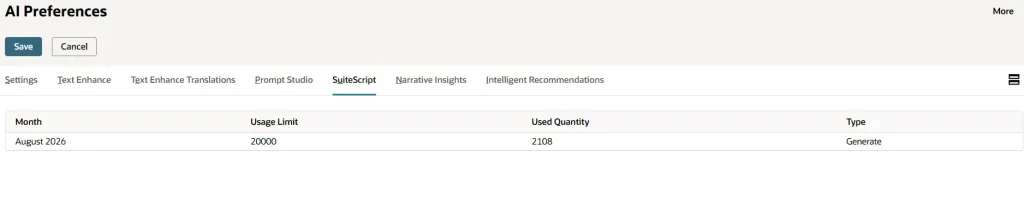
That growth confirms what the number tracks: a live, cumulative total for the whole month, rising every time any script calls the LLM, not a fixed figure tied to a single test.
Tokens vs Quota
Tokens and quota work as two separate things. Every successful call costs exactly one unit from the 20,000-per-month pool, no matter how many tokens the call used. The usage table counts calls only, not tokens. To check what remains, use getRemainingFreeUsage().
Reference: Oracle NetSuite: N/llm Module (getRemainingFreeUsage)
One More Limit to Know About
Each evaluatePrompt() call also costs 100 governance units against the script’s own governance budget. A User Event script gets 1,000 units. Scheduled and Map-Reduce scripts get 10,000. This limit has nothing to do with the monthly free pool. This limit works like any other SuiteScript API governance cost. Exceeding the budget mid-script throws SSS_USAGE_LIMIT_EXCEEDED. A User Event script calls evaluatePrompt() about 10 times before running out of governance entirely. Keep that limit in mind before looping the call over a large record set.
Reference: Oracle NetSuite: SuiteScript 2.1 API Governance and SuiteScript Governance and Limits
Getting JSON Back Instead of Text
Both prompts above return free text by design: a paragraph, an email. The same runAi() call also generates structured JSON, using a second, separate model call with responseFormat. Here is that second call, step by step.
Step 1: build a prompt that asks for structured data. Same suiteQuery and queryData from Step 1 of the summary flow, reused here:
const buildStructuredPrompt = (suiteQuery, queryData, rowCount) => (
  `Analyze this SuiteQL query result and extract structured data.

Query:
${suiteQuery}

Data (${rowCount} rows):
${queryData}

Return one record per row with customer, orderCount, and totalAmount fields.`
);
Step 2: define the shape, and call generateText() with it. On NetSuite, responseFormat works as the JSON schema itself, not wrapped in a { type: ‘json_object’, schema: {…} } object the way some other providers structure the parameter:
const QUERY_RESPONSE_FORMAT = {
  type: 'object',
  required: ['summary', 'records'],
  properties: {
    summary: { type: 'string' },
    records: {
      type: 'array',
      items: {
        type: 'object',
        properties: {
          customer: { type: 'string' },
          orderCount: { type: 'integer' },
          totalAmount: { type: 'number' }
        }
      }
    },
    insights: { type: 'array', items: { type: 'string' } }
  }
};

const jsonResult = llm.generateText({
  prompt: buildStructuredPrompt(suiteQuery, queryData, rows.length),
  modelFamily: llm.ModelFamily.COHERE_COMMAND,
  modelParameters: { maxTokens: 1500, temperature: 0.1 },
  responseFormat: QUERY_RESPONSE_FORMAT
});
Reference: Oracle NetSuite: llm.generateText(options), full parameter list documented here.
Step 3: parse the result. This one line:
const structuredData = JSON.parse(jsonResult.text);produced this exact structuredData, from the same “Top customers by sales” run documented above. All 15 rows came back as one object per customer (trimmed to 10 here for space):
{
  "summary": "Top entry is Riso Products with total amount 37111474.83.",
  "records": [
    { "customer": "Riso Products", "orderCount": 4, "totalAmount": 37111474.83 },
    { "customer": "Toyo Systems", "orderCount": 4, "totalAmount": 24341473.09 },
    { "customer": "Bay Media Research", "orderCount": 52, "totalAmount": 17725450 },
    { "customer": "Shoaib Noman", "orderCount": 4, "totalAmount": 14071000 },
    { "customer": "Neova Group", "orderCount": 1, "totalAmount": 10349298.75 },
    { "customer": "HTI Corporation", "orderCount": 2, "totalAmount": 8538096.49 },
    { "customer": "Fitsu Designs", "orderCount": 3, "totalAmount": 4205917.65 },
    { "customer": "Podolski Inc.", "orderCount": 24, "totalAmount": 1635846.6 },
    { "customer": "Imran Altima Technology", "orderCount": 17, "totalAmount": 1002899.88 },
    { "customer": "Gtech Ltd.", "orderCount": 1, "totalAmount": 533945.28 }
  ],
  "insights": ["Riso Products appears first in the sorted results."]
}
That covers the entire structured path: build the prompt, call generateText() with a schema, parse the result. Three steps, same pattern every time.
What If the Structured Call Fails?
The code does not error out on failure. The code falls back to building the same shape directly from the raw rows, using pattern matching on the column names instead of asking the model:
const buildJsonFromRows = (rows) => {
  const records = rows.map((row) => {
    const entries = Object.entries(row).filter(([key]) => key !== '__rowid');
    const findKey = (pattern) => entries.find(([key]) => pattern.test(key))?.[0];
    const customerKey = findKey(/customer|entity|name|vendor/i) || entries[0]?.[0];
    const countKey = findKey(/count/i);
    const amountKey = findKey(/amount|total|unpaid|value/i);

    return {
      customer: String(row[customerKey] ?? ''),
      orderCount: countKey ? Number(row[countKey]) || 0 : 0,
      totalAmount: amountKey ? Number(row[amountKey]) || 0 : 0
    };
  });
  // builds summary and insights from records, same shape as the LLM would return
};
A JSON-consuming caller downstream always gets the same shape back, whether the model succeeded or not. The response tracks which path ran (jsonSource: ‘llm’ or ‘fallback’) and merges token usage from both the summary call and the JSON call into one combined total, while keeping each call’s usage available separately too.
Two Things Worth Knowing
- Structured JSON output only works with Cohere Command models, not GPT-OSS. Same limitation as RAG.
- responseFormat works as a generateText() option, not an evaluatePrompt() option. Neither prompt in Prompt Studio uses it. Structured JSON has to be requested in code, not configured on the Template field.
Where This Pattern Applies
- Auto-summary on save. A User Event script runs evaluatePrompt() after a record saves, writing a summary onto a custom field.
- Classification and routing. Feed a support case’s text into a prompt that returns a category, then branch script logic on the result.
- Scheduled digest emails. A Scheduled Script fetches data on a schedule, summarizes the data via a Generic Prompt, and hands the text to N/email.
- Field-level rewriting. Text Enhance prompts let end users improve typed text without custom code.
Who Owns What
| Functional / business | Developer / technical |
|---|---|
| Defines the use case | Fetches and prepares the data as variables |
| Writes and tunes the prompt wording, tone, preamble | Calls evaluatePrompt() from the right script type |
| Adjusts model settings for output style | Handles governance, error handling, performance |
| Tests prompts in Preview with sample values | Acts on the AI output: N/email, N/record, and similar |
| Owns ongoing prompt edits, no redeploy needed | Sets up OCI config if the account needs unlimited usage |
Both sides need to agree on one thing upfront: the exact variable names a prompt expects (queryData in both examples here) and the shape the output should take. Everything else gets worked out independently.
Conclusion
Prompt Studio stores two fields per prompt: Preamble and Template. evaluatePrompt() sends both, plus a data variable, to the model in one line of code. Everything else, fetching the query, writing a value back to a record, sending an email, stays in ordinary SuiteScript.
The two prompts in this document prove the real capability. Two different Templates pulled the same raw NetSuite data and produced two separate results: a plain summary and a formatted email. Neither call left NetSuite. The model runs through N/llm, built into the platform, with no external API key and no separate vendor account to manage.
That stands as the real achievement here. A business user changes the wording in Prompt Studio. A developer changes the query. Neither one touches the other’s code, and the whole pipeline runs inside the same NetSuite account that already holds the data.
Related Reads
Continue exploring NetSuite AI and development with these practical Folio3 guides covering AI Connector, MCP tools, API integrations, authentication, and related development workflows.
Getting Started
• A Complete Setup Guide for NetSuite AI Connector
• A Setup Guide for NetSuite AI Connector with Postman: API Integration Tutorial
• Getting Started with NetSuite SuiteTalk REST API in Postman
• NetSuite MCP OAuth 2.0 Token Generator Tool
• SuiteScript Essentials: A Developer’s Getting Started Guide
• Open Source for Dummies: A Beginner’s Open Source Journey
• SuiteCommerce Development: An Illustrated Guide from Setup to Extension Deployment & Troubleshooting
MCP and Client Integrations
• IDE Integration Guide for NetSuite MCP Tools in Cursor & VS Code
• Connecting MCP with ChatGPT: A Complete Guide
• Connecting MCP Tools with Qwen
• Connecting ChatGPT Business with NetSuite via MCP: The Future of Enterprise AI Integration
• OAuth 2.0 in NetSuite: Complete Setup Guide (Client Credentials Flow)
Advanced Architecture
• Building Custom Tools for NetSuite AI Connector: Development Guide
• Dual API Integration: Using NetSuite MCP Tools with OpenAI and Anthropic
• NetSuite MCP Challenge: Implementation Case Study & Results
• MCP Input Formats Compared: Token Usage Analysis for NetSuite MCP Tools
• Integrating NetSuite MCP Tools with AI-Powered CLI Tools
• WhatsApp Triggered AI Agent for NetSuite Using n8n and MCP Tools
• Advanced NetSuite PDF and HTML Template Tricks
• NetSuite Scriptable Cart in SuiteCommerce Advanced: 6 Problems Developers Actually Need to Solve