Managing records in NetSuite often involves updating or cleaning up data. While most users are familiar with editing records, fewer know that you can also delete records directly from the UI using inline editing.
This approach can save time, especially when working with multiple records, but it needs to be used carefully.
What Is Inline Editing in NetSuite?
Inline editing allows you to make quick changes to records directly from list views, without opening each record individually.
It is commonly used for:
- Updating field values
- Editing multiple records quickly
- Streamlining data management tasks
With the right setup, it can also be used to delete records efficiently.
When Can You Use Inline Editing for Deletion?
Inline editing for deletion works best in list views or saved searches where records are displayed in a grid format.
However, this depends on:
- Record type
- User permissions
- Whether inline editing is enabled
Not all records support deletion through inline editing, so it’s important to verify before proceeding.
There is one method available in NetSuite to delete a lot of record at once from the list of records, which allows inline editing.
I am demonstrating here to delete the first 15 records from the custom record type:
1. Got to the records list and enabled the inline editing if it is disabled.
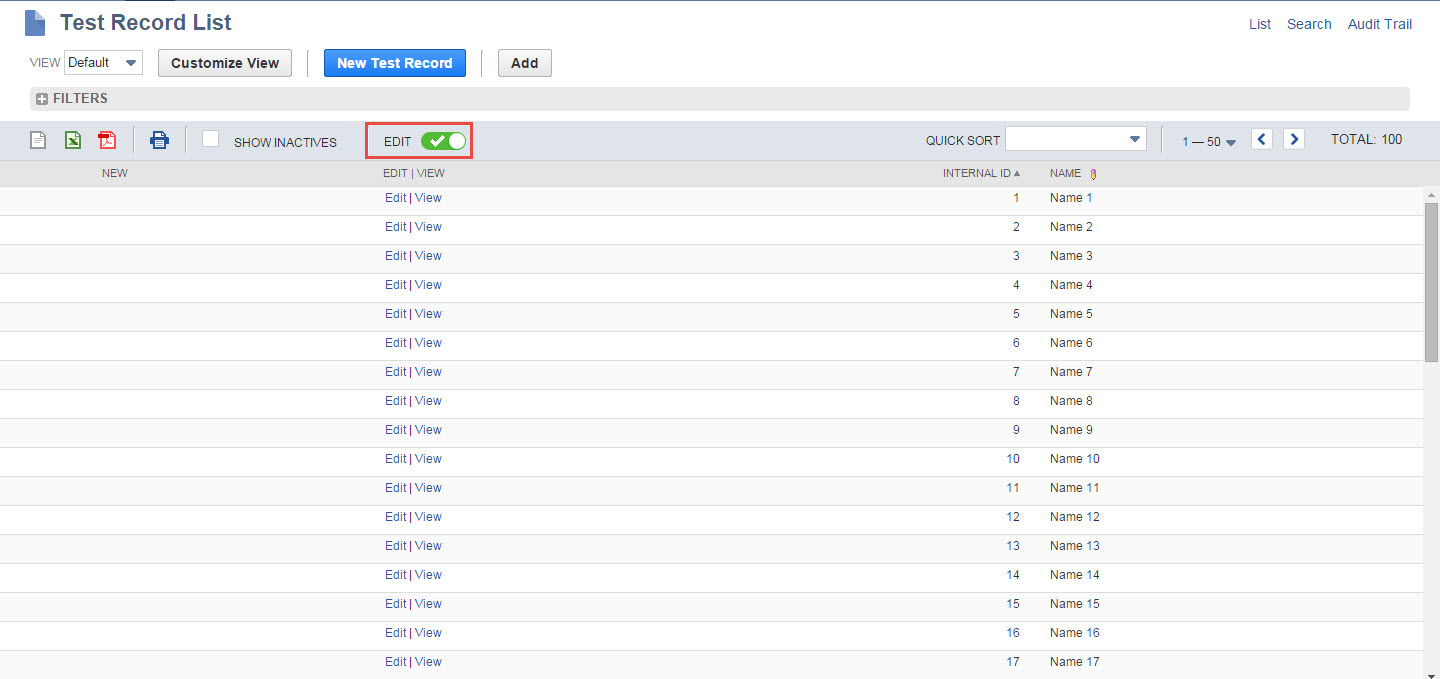
2. Select the start row as shown below.

3. Press Shift button and select the last row. Here I am selecting record number 15 as last row. A dashed square area shows our selection.


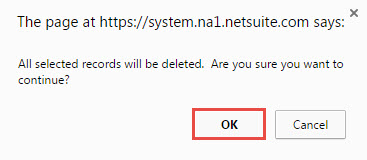
4. Press the Delete button on the keyboard and click OK.

After refreshing the page, 15 records will be deleted. It is an easy way to delete the records.
Limitations to Be Aware Of
- Inline editing is useful for quick updates, but it does not fully replace standard deletion methods in NetSuite. There are certain limitations you need to keep in mind before relying on it for record cleanup.
- Not all record types support deletion directly from list views. In many cases, especially with transaction records, you’ll still need to open the record and delete it manually. This can slow down the process if you’re handling large volumes.
- Some records also have dependencies, such as linked transactions or references, which prevent deletion altogether. NetSuite restricts deletion in these cases to maintain data integrity.
- Permissions play a major role as well. Even if inline editing is enabled, users without proper delete permissions will not see the option or may face errors. Always verify what actions are allowed based on your role and system configuration before proceeding.
Best Practices
Before deleting any records, take time to review them carefully. Even a small mistake can lead to data loss that is difficult to recover, especially in a live environment.
- Using saved searches is highly recommended. They help you filter and isolate only the records that actually need to be deleted, reducing the risk of removing the wrong data.
- Avoid bulk deletion without proper validation. While it may seem faster, deleting records in bulk without checks can create inconsistencies or break linked data.
- If possible, test your approach in a sandbox environment first. This allows you to validate your process and understand any system behavior before applying changes in production.
- It’s also a good practice to maintain backups or export data before deletion. Having a CSV copy ensures you can restore or reference data if needed later.
These steps help minimize risks and ensure your data remains accurate and reliable.
Final Thoughts
Inline editing in NetSuite is a practical feature that helps speed up data management tasks. While it doesn’t replace all deletion methods, it provides a more efficient way to review and manage records from a single interface.
When used carefully, it can significantly reduce manual effort and improve overall workflow efficiency, especially when dealing with large datasets.
Stuck on a Step?
If you’re unable to delete records using inline editing, the issue is usually tied to permissions, record type restrictions, or system settings. Even a small configuration gap can prevent expected actions from working.
Go back and review your role permissions, ensure inline editing is enabled, and confirm whether the record type supports deletion from the list view. Fixing these areas usually resolves the issue quickly.
NetSuite Alliance Partner
Working with a NetSuite Alliance Partner can help you manage data more efficiently and avoid common issues related to record handling.
An experienced partner can set up structured data management workflows, ensure proper permissions and controls are in place, and assist with bulk updates or safe data cleanup. This helps maintain data accuracy while reducing operational risks.
With the right support, your NetSuite environment remains clean, reliable, and easier to manage as your business grows.